Baldur's Gate II (Classic) Custom Portraits
Last reviewed: 2026-06-17
Portrait specifications
| Size | Dimensions | File name | Format |
|---|---|---|---|
| Large | 110×170 px | NAMEL.bmp | BMP |
| Small | 38×60 px | NAMES.bmp | BMP |
- Base name limited to 8 characters.
- File names must be UPPERCASE.
- Example:
MINSCL.bmp, MINSCS.bmp
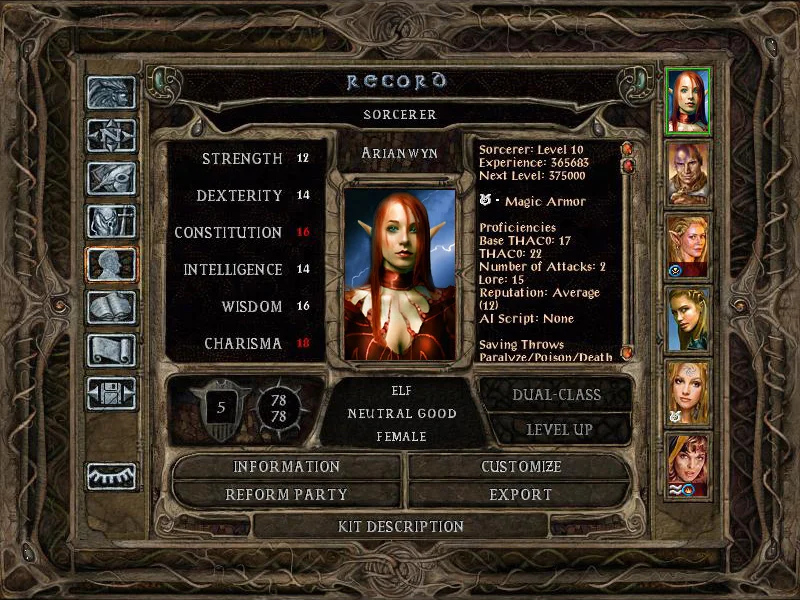
Before you start
Baldur's Gate II Classic (Shadows of Amn and Throne of Bhaal, the non-Enhanced version available on GOG) shares the portrait folder convention with BG1 Classic — files go inside the installation directory, not in Documents.
The dimensions differ from the Enhanced Edition: 110×170 for Large (not 210×330). Keep this in mind if you also play BG2:EE — the portrait files are not interchangeable.
Step-by-step installation
- Open PortraitCrafter and select Baldur's Gate II (Classic) from the catalog.
- Upload your image and crop or fit it to the portrait frame.
- Enter a base name of at most 7 uppercase characters (for example
MINSC). - Export the ZIP. It contains
<NAME>L.bmp(110×170) and<NAME>S.bmp(38×60). - Navigate to the
portraits\folder inside your BG2 Classic installation directory. - Copy both BMP files into the portraits folder.
- Launch the game. The portrait appears in the character creation screen.
Troubleshooting
Portrait does not appear in the list
Confirm the base name is 7 characters or fewer and that the files are in the portraits\ subfolder of the installation directory (not in Documents or Desktop).
Portrait looks corrupted or shows wrong colors
Re-export from PortraitCrafter. If you converted from another format, verify the BMP is 24-bit and the file is not corrupted.
I want to change the portrait on an existing save
Use Shadow Keeper, the save-game editor for BG2 Classic. Open your save, find your character, and update the portrait reference to the base name of your new files.
What we could not confirm
- The bit-depth of the Small file (24-bit vs. 8-bit indexed) in BG2 Classic has not been validated in-game in this research cycle. Community sources indicate 24-bit Small files are generally accepted in BG2 Classic, unlike BG1 Classic.