Baldur's Gate: Enhanced Edition Custom Portraits
Last reviewed: 2026-06-17
Portrait specifications
| Size | Dimensions | File name | Format |
|---|---|---|---|
| Large | 210×330 px | NAMEL.bmp | BMP |
| Medium | 169×266 px | NAMEM.bmp | BMP |
- Base name limited to 7 characters.
- File names must be UPPERCASE.
- Example:
KHALIDL.bmp, KHALIDM.bmp
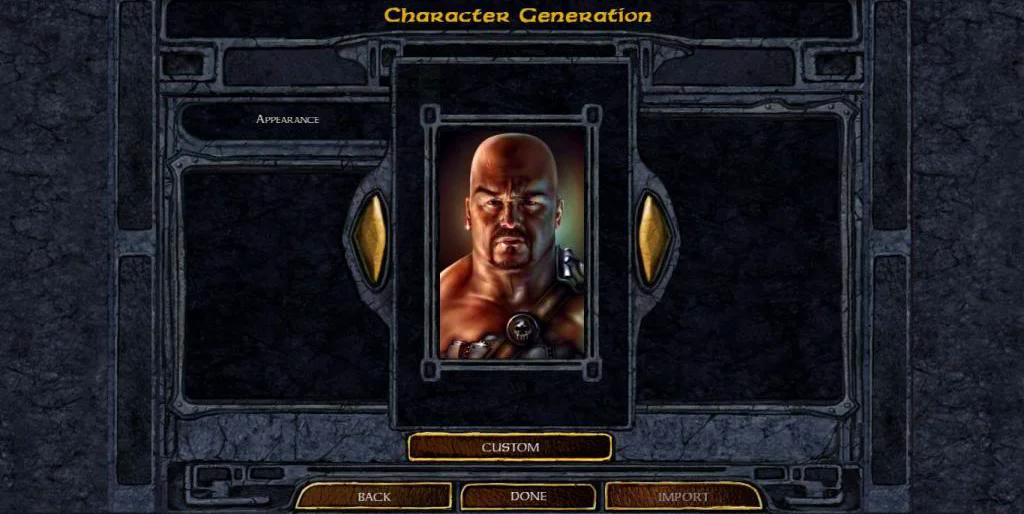
Before you start
You will produce two BMP files per portrait: a Large image and a Medium image. PortraitCrafter generates both at the correct dimensions automatically, so you only need to choose the source image and a name.
The naming rule is the part people get wrong most often: the base name can be at most 7 characters, written in UPPERCASE, followed by the size suffix.
Step-by-step installation
- Open PortraitCrafter and select Baldur's Gate: Enhanced Edition from the catalog.
- Upload your image and crop or fit it. The editor produces the Large and Medium files for you.
- Enter a base name of up to 7 uppercase characters (for example
KHALID). The export adds theLandMsuffixes. - Download the BMP files.
- Copy both files into the
portraitsfolder inside the game directory (create it if it is missing). - Launch the game and pick your portrait on the character creation or record screen.
Troubleshooting
The portrait does not appear in the list
Check the base name length first. Names longer than 7 characters are rejected by the Enhanced Edition. Confirm the files are real BMP files and that both the L and M variants are present in the portraits folder.
The portrait looks wrong or distorted
Re-export from PortraitCrafter so both files use the sizes the engine expects. Manually resized images often end up at the wrong aspect ratio.
Steam Cloud keeps overwriting my files
Make sure you are editing the local portraits folder inside the install directory, not a synced Documents copy. Restart the game after copying the files.
What we could not confirm
- macOS and Linux paths are community-reported and may vary by store (Steam / GOG / App Store).