Icewind Dale II Custom Portraits
Last reviewed: 2026-06-17
Portrait specifications
| Size | Dimensions | File name | Format |
|---|---|---|---|
| Large | 210×330 px | NAMEL.bmp | BMP |
| Small | 42×42 px | NAMES.bmp | BMP |
- Base name limited to 8 characters.
- File names must be UPPERCASE.
- Example:
HEROL.bmp, HEROS.bmp
Before you start
Icewind Dale II has no Steam release and no Enhanced Edition — it is a GOG exclusive. The portrait system is close to the Infinity Engine classic games:
- Large (L): 210×330, 24-bit BMP.
- Small (S): 42×42, BMP (8-bit indexed recommended). The Small file is the tiny portrait thumbnail in the party panel.
The Portraits folder is inside the installation directory, not in Documents. The base name limit is 7 characters (8 total with the suffix).
Step-by-step installation
- Open PortraitCrafter and select Icewind Dale II from the catalog.
- Upload your image. Crop or fit it to the portrait frame.
- Enter a base name of at most 7 uppercase characters (for example
HERO). - Export the ZIP. It contains
<NAME>L.bmp(210×330) and<NAME>S.bmp(42×42). - Navigate to the Portraits folder inside your IWD2 installation (see install paths above).
- Copy both BMP files into the Portraits folder.
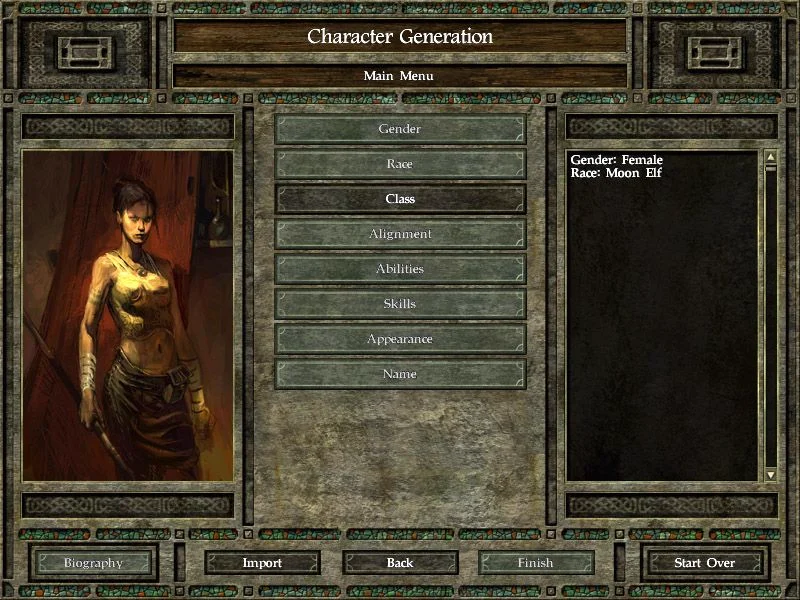
- Launch the game. Your portrait appears in character creation.
Troubleshooting
Portrait does not appear in the list
Check that the base name is 7 characters or fewer. Also confirm the files are in Portraits\ inside the installation folder, not somewhere in Documents or AppData.
The small portrait thumbnail looks wrong
The Small file is only 42×42. An image that works at 210×330 may not look good at 42×42. PortraitCrafter crops the small file intelligently — if the result is unsatisfactory, adjust the crop in the editor before exporting.
The game says it cannot find the portrait after loading a save
This can happen if the portrait files were moved or renamed after the save was created. Restore the original files with exactly the same base name in the Portraits folder.